

Introduction
Struggling to connect your Microsoft wireless keyboard? You’re not alone! Many users face challenges when it comes to pairing their wireless devices. Whether you just purchased one or are trying to reconnect an existing keyboard, this guide provides step-by-step instructions to make the process smooth and straightforward. Let’s dive into how to connect your Microsoft wireless keyboard effectively!
Understanding Microsoft Wireless Keyboards
Microsoft offers a variety of wireless keyboards designed for different needs and preferences. From compact models suitable for travel to full-sized options with additional features, there’s something for everyone. One major advantage of these keyboards is the freedom of movement they provide, eliminating the clutter of cables. They typically operate via Bluetooth or a USB receiver, giving you flexibility in how you connect them to your devices.
Most Microsoft wireless keyboards feature ergonomic designs, adjustable angles, and multimedia keys, enhancing your typing experience. Before connecting, it’s crucial to ensure your device is compatible. This usually includes PCs, laptops, and sometimes even tablets and smartphones, depending on the model. Knowing your keyboard’s features and compatibility will help you troubleshoot any connection issues that might arise.
Preparing to Connect Your Microsoft Wireless Keyboard
Before diving into the connection process, there are a few preparations you should make. First, ensure your keyboard has fresh batteries installed. Most wireless keyboards run on AA or AAA batteries, which you can easily replace. In some cases, you may find a rechargeable option, which will require charging before use.
Next, check that your computer or device has Bluetooth capabilities. If you’re using a USB receiver, make sure it’s plugged into a working USB port. If your keyboard came with a USB receiver, it’s typically included in the packaging. Familiarizing yourself with your keyboard’s buttons is also a good idea, especially the power switch and pairing button, which are essential for connecting.
How to Connect Microsoft Wireless Keyboard via Bluetooth
Connecting your Microsoft wireless keyboard via Bluetooth is a straightforward process. Here’s how to do it:

- Turn on your keyboard: Locate the power switch, usually found on the underside of the keyboard, and slide it to the ‘on’ position.
- Activate Bluetooth on your device: Navigate to the settings menu on your computer or device. For Windows, go to Settings > Devices > Bluetooth & other devices.
- Put the keyboard in pairing mode: Press and hold the pairing button on your keyboard until the LED indicator starts blinking. This indicates that the keyboard is in pairing mode.
- Search for devices: In your device’s Bluetooth settings, click on ‘Add Bluetooth or other device.’ Your Microsoft keyboard should appear in the list of available devices.
- Select your keyboard: Click on the keyboard name to initiate the pairing process. You may need to enter a code displayed on the screen.
- Confirm connection: Once paired, the keyboard should indicate a successful connection, often by stopping the blinking light. Test it out by typing in a text application.
How to Connect Microsoft Wireless Keyboard Using a USB Receiver
If your Microsoft wireless keyboard comes with a USB receiver, the connection process is even simpler. Here’s how you can connect using the USB dongle: How to Connect a Logitech Wireless Keyboard: A Complete Guide
- Install batteries: Ensure your keyboard has fresh batteries installed. This step is crucial for functionality.
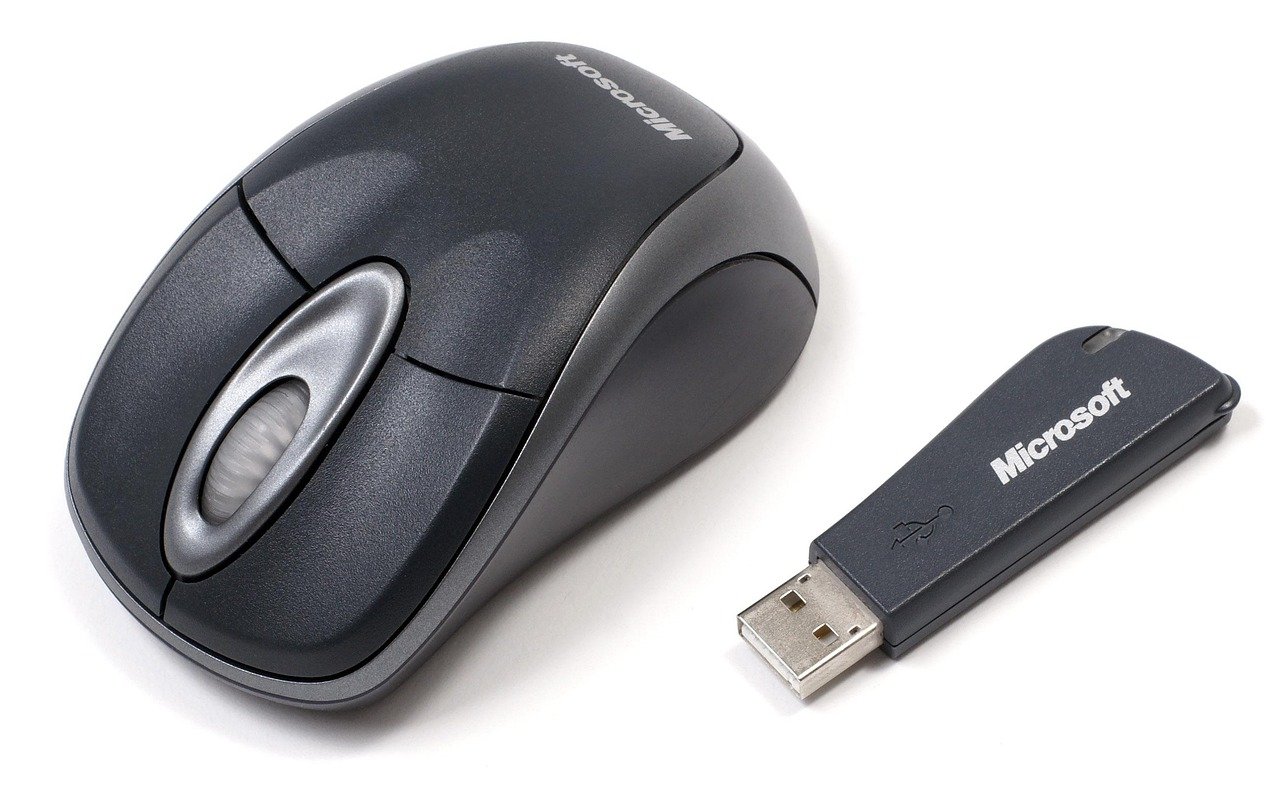
- Insert the USB receiver: Plug the USB receiver into an available USB port on your computer. Wait for a few seconds for your device to recognize it.
- Turn on your keyboard: Switch on the keyboard using the power button. It should automatically connect to the receiver.
- Test the connection: Open a text editor or word processor and type to confirm that the keyboard is working correctly.
Troubleshooting Connection Issues
Sometimes, despite following the connection steps, you may face issues. Here are some common problems and their solutions:
- Keyboard not detected: Ensure that the keyboard is powered on and in pairing mode. If using Bluetooth, make sure Bluetooth is enabled on your device.
- Keyboard keeps disconnecting: Check the battery levels. Low batteries can cause intermittent connections. Replace or recharge them if necessary.
- Input lag or delay: This could be due to interference. Ensure that there are no other wireless devices nearby or try moving the USB receiver closer to the keyboard.
If problems persist, consult Microsoft’s support website for more detailed troubleshooting tips or consider resetting your keyboard.
Benefits of Using a Wireless Keyboard
Switching to a Microsoft wireless keyboard can greatly enhance your computing experience. Here are some key benefits:
- Freedom of movement: With no wires to restrict you, you can sit comfortably at any angle or distance from your screen.
- Clutter-free workspace: Wireless keyboards help maintain a clean and organized desk, reducing cable clutter.
- Portability: Many wireless keyboards are lightweight and easy to carry, making them ideal for travel or remote work.
These advantages contribute to a more enjoyable and efficient typing experience, whether you’re working from home, gaming, or just browsing the web.
Maintaining Your Microsoft Wireless Keyboard
To keep your Microsoft wireless keyboard functioning optimally, regular maintenance is essential. Here are some tips:
- Clean regularly: Dust and debris can accumulate under the keys. Use a soft, dry cloth to wipe down the surface and a can of compressed air to clean between the keys.
- Check battery levels: Periodically check and replace batteries as needed to avoid sudden disconnections.
- Update drivers: Ensure your computer’s drivers are up to date. This can improve performance and compatibility.
Taking these steps will not only extend the life of your keyboard but also enhance your overall typing experience. How to Connect Wireless Keyboard: A Comprehensive Guide
FAQs
1. Why won’t my Microsoft wireless keyboard connect?
If your keyboard won’t connect, check that it’s powered on and in pairing mode. Ensure Bluetooth is enabled on your device or that the USB receiver is properly plugged in.
2. How do I know if my Microsoft keyboard is charged?
Most wireless keyboards will have an indicator light that shows battery status. If the light is red or blinking, it’s time to replace or recharge the batteries.
3. Can I connect my Microsoft wireless keyboard to a tablet?
Yes, most Microsoft wireless keyboards can connect to tablets that support Bluetooth functionality. Just ensure your tablet is set to discoverable mode.
4. How do I reset my Microsoft wireless keyboard?
To reset your keyboard, turn it off, remove the batteries, wait for 10 seconds, then reinsert the batteries and turn it back on.
5. What should I do if my keyboard keeps disconnecting?
Check the battery level and replace them if low. Also, try to minimize interference from other wireless devices.