
Why Are Chrome Notifications Important?
Notifications are essential for your browsing experience. They alert you to important updates, messages, and reminders, helping you stay connected without constantly checking your apps or websites. However, when Chrome notifications stop functioning as intended, it can disrupt your workflow and lead to missed opportunities. Understanding the significance of these notifications can help you appreciate why resolving issues surrounding them is vital.
Chrome notifications serve various purposes, from alerting you to incoming emails to updates from your favorite extensions. They can enhance productivity by providing real-time information. When they don’t show up, it can be frustrating, especially if you’re waiting for something crucial. Therefore, knowing how to fix Chrome notifications is not just a technical necessity; it’s a way to ensure you don’t miss out on important information.
For instance, imagine you’re waiting for a critical email from a client about a project deadline. If Chrome notifications are not working, you might miss it entirely, leading to unnecessary stress and potential delays. This scenario underscores how vital these notifications can be in both personal and professional settings.
Common Issues with Chrome Notifications
Before diving into the fixes, it’s essential to identify the common problems users face with Chrome notifications. These issues can stem from various sources, including browser settings, system configurations, and even conflicts with extensions. By understanding these problems, you can target your troubleshooting efforts more effectively.
One prevalent issue is the failure of notifications to appear at all. This can happen due to incorrect settings within Chrome or your operating system. Another common problem is that notifications may be turned off for specific sites or globally. Additionally, some users report receiving notifications but find them unresponsive or delayed, which can be equally frustrating. Identifying these issues is the first step toward implementing an effective Chrome Notifications Fix.
For example, one user shared how they missed a vital notification about a webinar they were eager to join. They later discovered that the site’s permission to send notifications had been accidentally blocked. This emphasizes the importance of regularly checking your settings.
How to Check Chrome Notification Settings
To start resolving notification issues, you need to check Chrome’s notification settings. Here’s how you can do this:
- Open Google Chrome and click on the three vertical dots in the upper right corner.
- Select Settings from the dropdown menu.
- In the left sidebar, click on Privacy and security.
- Choose Site Settings.
- Scroll down to find Notifications and click on it.
In this section, you’ll see a list of sites allowed to send notifications and those that are blocked. Ensure that the sites you want notifications from are on the allowed list. If they’re blocked, simply click on the three dots next to the site and select Allow.
It’s also worth checking if the global setting for notifications is enabled. If you see an option that says Sites can ask to send notifications, ensure it’s turned on. If it’s set to Don’t allow sites to send notifications, you won’t receive any notifications at all.
In my experience, I often find myself enabling notifications for news sites that I rely on for updates. When I previously missed a crucial news alert, I realized the permissions were altered without my knowledge. This is a reminder to always verify your settings periodically.
Restarting Chrome: A Simple Fix
Sometimes, a simple restart of the browser can resolve notification issues. Closing and reopening Chrome can refresh its processes and clear minor glitches that may be affecting notifications. To do this, follow these steps:
- Click on the three vertical dots in the top-right corner of the browser.
- Select Exit to close Chrome completely.
- After a few seconds, reopen Chrome by clicking on the icon.
Once Chrome is back up, check to see if notifications are functioning correctly. This quick fix often resolves temporary issues and can save you time instead of diving deeper into settings.
For instance, when I faced issues with notifications not appearing after a long browsing session, just restarting Chrome did the trick. It’s a fast solution that can often resolve minor hiccups.
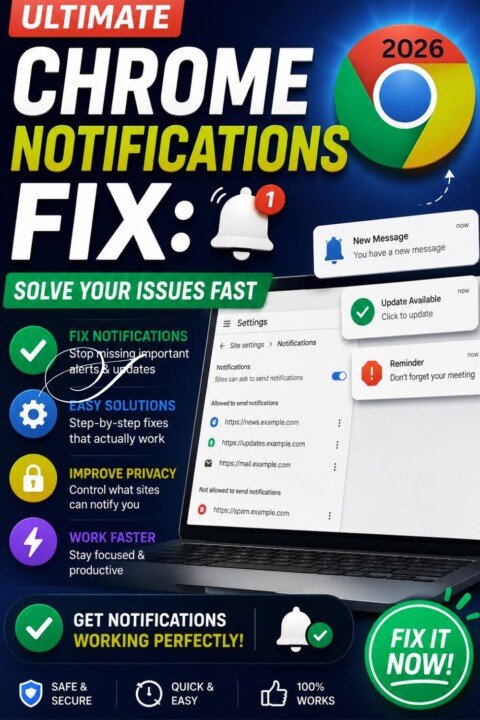
Clearing Cache and Cookies to Fix Notifications
If restarting Chrome doesn’t work, the next step is to clear your cache and cookies. Over time, accumulated data can interfere with browser functionalities, including notifications. Here’s how you can clear cache and cookies:
- Open Chrome and click on the three vertical dots.
- Go to More tools and then select Clear browsing data.
- In the pop-up box, select the time range (choose All time for a complete clear).
- Check the boxes for Cookies and other site data and Cached images and files.
- Click Clear data.
Once you’ve cleared this data, restart Chrome and check your notifications again. Clearing cache and cookies can help eliminate any corrupted files that might be causing issues. Phone Charging Slowly Fix: Top Solutions You Need to Know
One user shared that after clearing their cache, they noticed a significant improvement in how quickly notifications loaded. This step is often overlooked, but it can make a noticeable difference in performance.
Updating Chrome for Optimal Performance
Running an outdated version of Chrome can also lead to issues, including problems with notifications. Chrome updates often come with bug fixes and performance enhancements that can directly affect how notifications work. Here’s how to ensure you’re using the latest version:
- Open Chrome and click on the three vertical dots.
- Go to Help and select About Google Chrome.
- Chrome will automatically check for updates. If an update is available, it will download and install it.
- Once updated, restart your browser.
Keeping your Chrome browser up to date is crucial not just for notifications but for overall security and performance. Regular updates ensure you have the latest features and fixes, providing a smoother browsing experience.
For example, I once encountered a notification issue that was resolved simply by updating Chrome. It’s a straightforward step that can save you a lot of frustration.
Checking System Settings for Notifications
Sometimes, the issue isn’t with Chrome itself but with your operating system’s notification settings. Both Windows and MacOS have their own notification settings that can disable notifications from Chrome. Here’s how to check these settings:
For Windows Users
1. Click on the Start button and go to Settings.
2. Select System and then click on Notifications & actions.
3. Scroll down to find Get notifications from these senders and ensure that Chrome is enabled.
If Chrome notifications are turned off here, you won’t receive any alerts, regardless of your Chrome settings.
For MacOS Users
1. Click on the Apple menu and go to System Preferences.
2. Select Notifications.
3. Find Chrome in the list and make sure that it’s set to allow notifications.
Verifying system settings is a critical step in fixing notification issues. If your OS settings are blocking notifications, fixing them will restore functionality.
In my case, I once discovered that my Windows notification settings had inadvertently disabled Chrome notifications, which caused me to miss important alerts. Always check your system settings!
Disabling Extensions That May Interfere
Extensions can enhance your browsing experience, but they can also conflict with Chrome’s native features, including notifications. If you suspect that an extension might be causing the issue, you can disable them temporarily to see if notifications start working again. Here’s how to do that: Recover Deleted Photos Android: A Complete Guide
- Open Chrome and click on the three vertical dots.
- Go to More tools and select Extensions.
- Toggle off each extension one by one, or click Remove for those you suspect might be causing the problem.
After disabling extensions, check your notifications. If they start working again, you can enable them one by one to identify the specific culprit causing the interference.
For example, I had an extension that was supposed to help manage my tasks but ended up blocking notifications from my email service. Once I disabled it, notifications resumed, showcasing how sometimes, less is more.
Using Chrome Cleanup Tool
If you’re still facing issues with Chrome notifications, it might be time to utilize the Chrome Cleanup Tool. This built-in feature helps identify and remove harmful software that may be affecting Chrome’s performance, including its notification system. Here’s how to use it:
- Open Chrome and click on the three vertical dots.
- Go to Settings.
- Scroll down and click on Advanced.
- Under the Reset and clean up section, select Clean up computer.
- Click on Find to let Chrome search for harmful software.
After the scan, follow the prompts to remove any detected issues. Once the cleanup is complete, restart Chrome and check if notifications are working. This step can eliminate any underlying issues caused by malware or unwanted software.
A friend of mine had persistent issues with Chrome crashing and notifications failing. After running the Chrome Cleanup Tool, they discovered and removed malware that had been interfering with their browser. It’s a powerful tool!
Resetting Chrome Settings to Default
If all else fails, resetting Chrome to its default settings can provide a last-resort solution to notification problems. This action will restore Chrome to its original state, removing all custom settings and configurations. To reset Chrome, follow these steps:
- Open Chrome and click on the three vertical dots.
- Select Settings.
- Scroll down and click on Advanced.
- Under Reset and clean up, choose Restore settings to their original defaults.
- Confirm by clicking Reset settings.
Keep in mind that this will remove all your saved settings, including cookies, cache, and extensions. However, it can effectively resolve persistent notification issues if all other methods fail.
I once faced a situation where notifications had completely stopped. After resetting Chrome, everything was back to normal. Just remember to back up any important settings or bookmarks before doing this!
FAQs
Why aren’t my Chrome notifications appearing?
Notifications might be disabled in Chrome settings, in your operating system, or due to conflicting extensions. Check all these areas to troubleshoot.
How do I enable notifications for a specific site?
Go to Chrome settings, click on Site Settings, then Notifications, and ensure the site is allowed to send notifications.
Can clearing cache and cookies help with notification issues?
Yes, clearing cache and cookies can resolve conflicts and issues stemming from accumulated data that might be affecting notifications.
What should I do if extensions are causing issues?
Disable extensions one by one to identify which one is interfering with Chrome notifications. You can re-enable them after troubleshooting.
Is there a way to reset Chrome settings without losing bookmarks?
Yes, resetting Chrome settings only affects settings and not bookmarks. However, consider backing up your bookmarks just in case.
About The Author