Chrome Extensions: An Overview
Ever felt like your web browser could do more? With Chrome extensions, you can transform your browsing experience into something more efficient and tailored to your specific needs. These handy tools allow you to add features, customize your interface, and improve your productivity without having to switch between multiple apps. They’re like little apps for your browser, and they can help you accomplish a variety of tasks, from managing passwords to blocking ads.
Every day, millions of users turn to Chrome extensions to enhance their workflow. The Google Chrome Web Store is filled with thousands of extensions, each designed to solve various problems or enhance user experience. Whether you’re a student, a professional, or just someone who spends a lot of time online, knowing how to effectively use Chrome extensions can greatly improve your efficiency.
For instance, I once struggled with keeping track of my online tasks. I remember spending hours switching between different apps, feeling overwhelmed. But once I discovered the power of Chrome extensions, my productivity skyrocketed. I found tools that helped me manage my projects, automate repetitive tasks, and even streamline my email communications. It was a game changer, and I can’t imagine going back to a browser without them.
How to Install Chrome Extensions
Getting started with Chrome extensions is easy, but knowing the right steps can save you time and prevent potential issues. First, you need to open the Google Chrome browser on your computer. Next, navigate to the Chrome Web Store. You can find it by searching in Google or by typing in the URL: chrome.google.com/webstore/category/extensions.
Once you’re on the Chrome Web Store, you can explore various categories of extensions or use the search bar to find a specific extension. Here’s how to install extensions:
- Search for the extension you want.
- Click on the extension’s name to view its details.
- Hit the Add to Chrome button.
- A pop-up will appear asking for permissions. Review these carefully.
- If you agree, click Add Extension.
After installation, you’ll see the extension icon in the upper-right corner of your Chrome window. You can click on it to start using it right away. Some extensions might require additional setup, so be sure to follow any on-screen instructions. I recall my first experience with installing an extension; I was thrilled to see how quickly it integrated into my workflow. It felt like I had just unlocked a hidden feature that had been waiting for me all along.
Top Chrome Extensions for Productivity
When it comes to productivity, there are certain Chrome extensions that stand out. Here’s a list of some of the best ones that can help you manage your time and tasks more effectively:
- Trello: Perfect for project management, Trello helps you organize tasks visually using boards and lists. I’ve used it for planning everything from personal projects to group assignments, and its flexibility never ceases to amaze me.
- Todoist: A powerful task manager that integrates seamlessly with Chrome, allowing you to keep track of your to-do lists. I started using it when I needed a way to manage my ever-growing list of tasks and found it incredibly intuitive.
- Grammarly: This extension checks your grammar and spelling in real-time, making your writing more professional. I can’t tell you how many embarrassing typos I’ve avoided thanks to it!
- StayFocusd: If you find yourself distracted by social media or other websites, StayFocusd can block those sites for set periods. I’ve used it to help me focus during critical work hours, and it’s made a noticeable difference in my productivity.
- Evernote Web Clipper: Save articles, images, and PDFs directly to your Evernote account with this handy tool. It’s an essential part of my research process; I can clip content from almost anywhere on the web!
These extensions can significantly help streamline your daily tasks, ensuring you stay focused and organized. Remember, the key is to choose extensions that align with your specific needs and workflows. As you explore, think about your daily routines and where you could use a little extra help.
| Extension | Purpose | Unique Feature |
|---|---|---|
| Trello | Project Management | Visual task organization |
| Todoist | Task Management | Integrates with various platforms |
| Grammarly | Writing Assistance | Real-time grammar checking |
| StayFocusd | Time Management | Blocks distracting sites |
| Evernote Web Clipper | Content Saving | Clips content from the web |
Safety and Privacy Considerations
While Chrome extensions can enhance your browsing experience, it’s crucial to be aware of safety and privacy concerns. Not all extensions are created equal, and some may pose security risks. Here are some tips to ensure you’re using extensions safely: Phone Charging Slowly Fix: Top Solutions You Need to Know
- Read Reviews: Always check user reviews and ratings before installing an extension. This can give you insight into its reliability and effectiveness. I once overlooked this step and ended up with an extension that caused more trouble than it was worth.
- Check Permissions: Pay close attention to the permissions an extension requests. If it asks for access to data that seems unnecessary, think twice before proceeding. I’ve learned to be cautious about extensions that want access to my browsing history.
- Regularly Review Installed Extensions: Periodically go through your installed extensions and remove any that you no longer use or trust. This helps keep your browser clean and secure.
- Use Trusted Sources: Only download extensions from the Chrome Web Store to ensure they are vetted by Google. I’ve had a few close calls with third-party sites that offered extensions, but staying within the official store has kept my browser safer.
Maintaining your online security should always be a priority, so stay informed about the extensions you’re using. If you ever feel uneasy about an extension’s behavior, don’t hesitate to uninstall it.
Managing Your Chrome Extensions
Once you’ve installed your favorite extensions, it’s essential to manage them effectively. Here’s how to customize and organize your extensions:
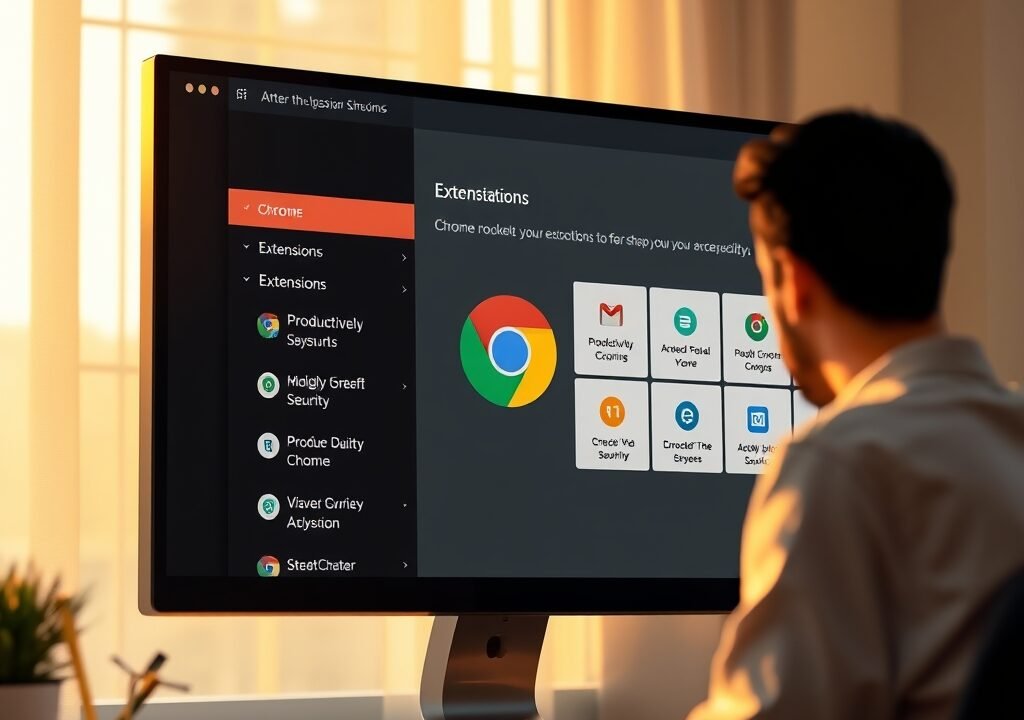
To view your installed extensions, click on the three dots in the upper right corner of Chrome, go to More tools, and then Extensions. Here, you can enable or disable extensions, remove them, or even access their options for further customization.
To keep your toolbar tidy, you can hide extensions that you don’t use frequently. Simply right-click the extension icon and select Hide in Chrome Menu. This keeps your toolbar clean while still allowing you to access all your extensions easily. I’ve found this particularly helpful when I’m working on specific tasks that don’t require all my usual tools.
Popular Categories of Chrome Extensions
Chrome extensions come in various categories tailored to different user needs. Here’s a breakdown of popular categories:
- Productivity: Tools that help manage tasks and time effectively, like Todoist and Trello, which I can’t recommend enough if you’re trying to get organized.
- Security: Extensions like LastPass and HTTPS Everywhere enhance your online safety. Using LastPass has been a lifesaver for managing my passwords securely.
- Social Media: Tools to enhance your social media experience, such as Buffer for scheduling posts. I’ve used Buffer to manage my social media presence without feeling overwhelmed.
- Shopping: Extensions like Honey help find coupons and deals while you shop online. I saved a decent amount on my last purchase just by having it installed!
- Education: Tools like Google Scholar Button aid in academic research. I often rely on it when I’m diving into a new topic for writing or study.
Choosing from these categories helps you narrow down the extensions that will be most beneficial for your daily activities and interests. It’s worth taking the time to explore what’s available in each category to find tools that truly enhance your online experience.
How to Uninstall Chrome Extensions
If you find that certain extensions are no longer useful, uninstalling them is a straightforward process. To do this, navigate to the extensions page as previously mentioned. Once there, simply find the extension you wish to remove and click on the Remove button. A confirmation dialog will appear; select Remove again to finalize.
Regularly uninstalling extensions you don’t use can help keep your browser running smoothly and free of clutter. I’ve made it a habit to do this every few months, and it’s surprising how much lighter my browser feels afterward! Recover Deleted Photos Android: A Complete Guide
Customizing Chrome Extensions
Many Chrome extensions offer customization options to better fit your preferences. For instance, extensions like Grammarly allow you to adjust settings based on your writing style. Some extensions may let you choose themes, icon sizes, or specific features that you want to enable or disable.
To access these settings, right-click on the extension icon in the toolbar and select Options or Settings. This will take you to the customization menu for that extension, where you can make adjustments as needed. I’ve spent time fine-tuning my extensions to suit my workflow, and it’s made a noticeable difference in how I interact with them daily.
Chrome Extension Development
If you’re tech-savvy and interested in creating your own Chrome extensions, the process is quite accessible. Google provides extensive documentation on how to build and publish your extensions. The basic structure involves an HTML file for the user interface, a manifest file that describes your extension, and JavaScript for functionality.
Before you start, familiarize yourself with the Chrome Extension Developer Guide. It covers everything from the development process to best practices for publishing your extension on the Chrome Web Store. Building your own extension can be a rewarding experience, allowing you to address specific needs that existing extensions don’t cover. I’ve toyed with the idea of developing my own extension to streamline a repetitive task, and it’s empowering to think about creating a tool that others might find useful too!
FAQs

What are Chrome extensions?
Chrome extensions are small software programs that enhance the functionality of the Chrome browser, allowing users to customize their browsing experience.
How do I find the best Chrome extensions?
Check the Chrome Web Store’s categories, read user reviews, and see what extensions others in your field recommend to identify the best ones for your needs.
Are Chrome extensions safe?
While many are safe, always check permissions, read reviews, and only download from the Chrome Web Store to minimize risks.
Can I use Chrome extensions on other browsers?
Most Chrome extensions are specifically designed for Chrome, but some can work on other Chromium-based browsers like Edge and Brave.
How do I uninstall a Chrome extension?
Go to the extensions page in Chrome, find the extension, and click Remove to uninstall it.