Why You Need to Increase Android Storage Space
Are you tired of seeing that dreaded “storage full” message on your Android device? You’re not alone. Many users face this issue, especially as apps grow larger and high-resolution photos and videos take up more space. Increasing your Android storage space can significantly improve your device’s performance, allowing you to store more apps, photos, and other essential files without constantly deleting or transferring items.
Moreover, having adequate storage space is crucial for system updates and app functionality. Many apps require a certain amount of free space to operate effectively. If your device is constantly running low on storage, you may experience slowdowns, crashes, or issues with app updates. Addressing your storage needs can enhance not only your device’s speed but also your overall user experience.
Here’s a personal anecdote: Just last month, I was trying to download a critical update for an app I rely on daily, and to my dismay, my phone wouldn’t allow it due to insufficient storage. I had to scramble to delete files and apps, and the whole experience was frustrating. After that incident, I realized the importance of proactively managing my storage.
Understanding Your Current Storage Situation
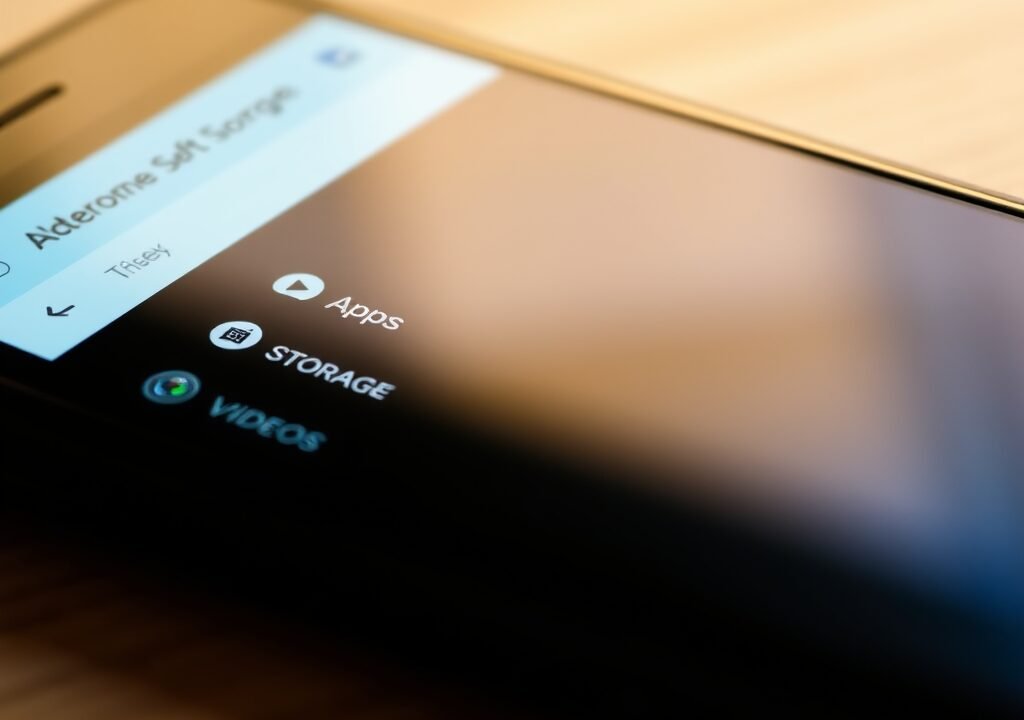
Before you can effectively increase Android storage space, it’s essential first to understand your current storage situation. You can check your available storage in your device settings. Simply navigate to Settings > Storage. Here, you’ll see a breakdown of how much space is being used by apps, media, and system files.
Understanding this breakdown helps identify areas where you can free up space. For instance, if a significant portion of your storage is taken up by photos and videos, consider transferring them to a cloud service or an external SD card. Conversely, if apps are consuming too much space, you can review which ones you rarely use and uninstall them. This initial assessment is crucial for effectively managing and increasing your Android storage space.
| Storage Category | Typical Usage | Suggestions for Management |
|---|---|---|
| Apps | 15-30% | Uninstall unused apps; review usage frequency |
| Photos & Videos | 30-50% | Transfer to cloud or SD card; delete duplicates |
| Music & Audio | 10-20% | Stream instead of download; remove old tracks |
| Documents | 5-15% | Archive to cloud; delete outdated files |
Freeing Up Space with Built-in Tools
Your Android device comes equipped with built-in tools designed to help you manage and increase your storage capacity. One of the most effective tools is the Storage Manager, which can automatically identify and suggest files you can delete. To access this feature, go to Settings > Storage and look for any options related to storage management.
Another useful built-in feature is Cached Data management. Cached data can accumulate over time, taking up unnecessary space. You can clear cached data by selecting the appropriate option in your storage settings. Regularly clearing cache can help keep your device running smoothly and maintain more available storage space.
For example, I used to ignore cached data until I learned that it could occupy several gigabytes over time. After clearing it out, my phone started running faster, and I found I had enough space for a couple of new apps I had been eyeing.
Using Android’s Files App
The Files app on your Android device is another valuable tool for managing storage. It allows you to see all your files in one place, making it easier to identify large files or duplicates that you can delete. The app also offers suggestions for files you might want to remove, such as unused apps or large downloads.
In my experience, the Files app has been a game changer. Just a few weeks ago, I used it to find and delete old downloads that I had completely forgotten about. It’s amazing how much space those little files can take up when added together!

Uninstalling Unused Apps
One of the quickest ways to increase Android storage space is by uninstalling apps you no longer use. Over time, we accumulate many applications, some of which we may only use once or twice. To uninstall an app, go to Settings > Apps, select the app in question, and choose Uninstall.
Additionally, consider using the Google Play Store. It provides information on apps you might not have used in a while. You can also look at the storage usage for each app, which can help you make informed decisions about what to keep and what to remove. Removing unused apps can free up significant space, making your device more efficient.
Take it from me: I recently cleared out about five apps that I hadn’t touched in months. That simple act freed up nearly a gigabyte of space, allowing me to download new apps and even take more photos without worry.
Identifying Large Apps
When looking to increase Android storage space, pay special attention to large apps. Games and media-heavy applications often take up a lot of space. You can sort your apps by size in the Apps section of your settings, allowing you to quickly identify which ones require the most storage. If you find an app that’s taking up more space than you thought, consider uninstalling it or looking for a lighter alternative.
For instance, I had a media player app that took up over 2GB, and I rarely used it. I found a lighter alternative that does the job just as well, and now I have additional space for new content.
Utilizing External Storage Options
If your Android device supports it, using an SD card can significantly increase your storage capacity. Many devices allow you to install a microSD card, which can be used to store photos, videos, and even apps. To set up an SD card, insert it into your device and format it via Settings > Storage > SD Card. Once formatted, you can move files from your internal storage to the SD card.
Additionally, some devices allow you to adopt the SD card as internal storage, effectively merging the two storage types. This can be beneficial if you’re consistently running low on space. However, be cautious, as removing the SD card may cause some apps to malfunction if they rely on it for storage.
I once had an old phone that had limited internal storage, but adding a 64GB microSD card transformed it into a reliable device again. I stored all my photos, music, and even some apps on that card, and it made a world of difference.
Benefits of Using Cloud Storage
Cloud storage options like Google Drive, Dropbox, and OneDrive provide an excellent way to free up space on your device. By uploading your photos, videos, and documents to the cloud, you can access them from anywhere without taking up physical storage on your device. Most cloud services offer a free tier with a set amount of storage, which can often be extended through subscription plans.
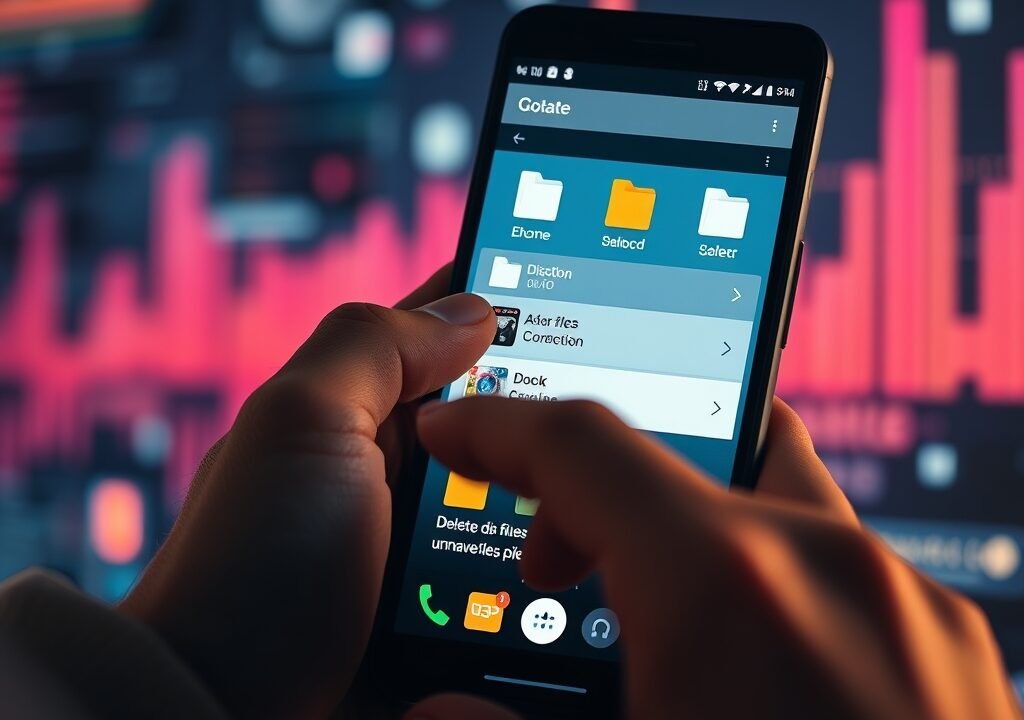
For example, I use Google Drive to back up all my important files and photos. This not only gives me peace of mind but also keeps my device clutter-free. I can easily access my files from any device, making it incredibly convenient.
Deleting Unwanted Media Files
Photos and videos can consume a significant portion of your Android storage. If you’re looking to increase your Android storage space, start by reviewing your media files. Go through your photo gallery and delete duplicates or images that don’t hold any value. You can also use photo management apps that automatically detect and suggest images to delete.
For videos, consider backing them up to a cloud service or an external drive and then removing them from your device. Additionally, if you use apps like WhatsApp, be aware that media files can accumulate quickly. Regularly clearing out these files can keep your storage in check.
Just the other day, I went through my photo gallery and was shocked to find over a hundred screenshots and blurry photos from failed attempts at selfies. After cleaning those out, I freed up around 2GB, which made a huge difference.
Using Third-Party Cleanup Apps
Beyond built-in tools, several third-party cleanup apps can help you manage your storage more effectively. Apps like CCleaner and Files by Google can help identify files you can delete, clear cache, and optimize your storage usage. However, it’s essential to choose reliable apps from reputable developers to avoid security risks.
One such app that has worked wonders for me is Files by Google. It not only helps in cleaning up unnecessary files but also offers smart suggestions based on my usage patterns.
Backing Up and Resetting Your Device
If you’ve tried all the tips and still find your storage lacking, backing up your device and performing a factory reset can be a final resort. This process wipes your device clean, allowing you to start fresh. Before you do this, ensure that you back up all your vital data, such as contacts, photos, and documents. You can back up your data using Google’s backup feature or by transferring files manually to your computer.
After the reset, you can selectively restore apps and files, allowing you to keep your device clutter-free. Many users find that this method not only increases their storage space but also improves overall device performance. I’ve done this once, and it felt like I had a brand-new phone all over again!
Regular Maintenance for Optimal Storage

To ensure your Android device remains efficient, it’s crucial to perform regular maintenance. Schedule monthly check-ins to review your storage usage. This can involve deleting unnecessary files, uninstalling unused apps, and checking for updates. Keeping your device organized will help you avoid storage-related issues down the line.
In fact, I’ve set a reminder on my calendar to check my storage at the beginning of each month. It’s a simple habit that ensures I don’t run into any issues as my storage needs change.
FAQs
1. What should I do if my Android storage is full?
If your Android storage is full, start by checking your storage settings to identify what’s taking up the most space. Uninstall unused apps, delete unnecessary media files, and consider using cloud storage or an SD card for additional space.
2. Can I increase storage on a non-expandable Android device?
Yes, you can increase storage by utilizing cloud services or by regularly deleting unnecessary files and apps. You can also consider using file management apps to help you manage storage more effectively.
3. How do I transfer apps to an SD card?
To transfer apps to an SD card, go to Settings > Apps, select the app you want to move, and look for the option to change storage location to the SD card. Note that not all apps support this feature.
4. Are there apps that can help me free up space?
Yes, there are several apps like CCleaner and Files by Google that can help identify files and cache that you can clear to free up space on your device.
5. How often should I check my storage?
It’s a good idea to check your storage at least once a month. This way, you can keep track of what’s consuming space and take action before you run into issues.