
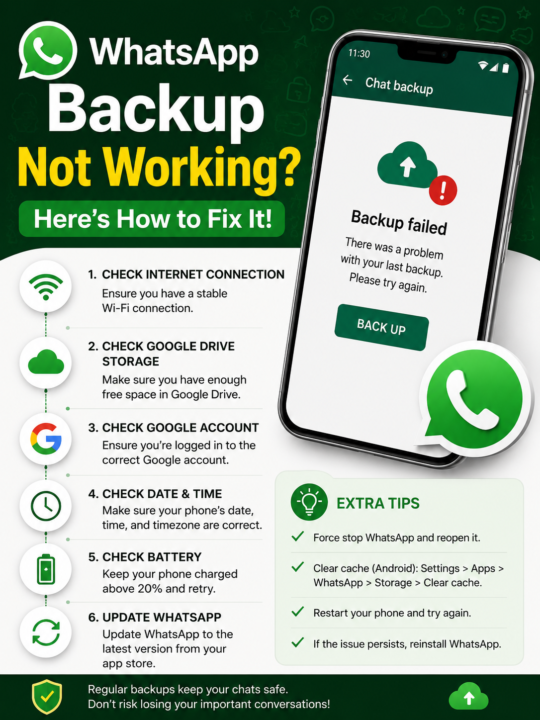
Understanding WhatsApp Backup Issues
Have you ever faced the frustrating experience of WhatsApp Backup Not Working? You’re not alone—many users encounter this problem at some point. The backup feature is crucial for preserving your chat history, media, and important conversations. When it fails, it can lead to anxiety and uncertainty about losing valuable data.
WhatsApp uses cloud storage services, like Google Drive for Android and iCloud for iPhone users, to keep your backups secure. However, several factors can interfere with these processes. From poor internet connections to app glitches, the reasons can be numerous. Understanding the root causes can help you troubleshoot and resolve the issue effectively.
Common Causes of WhatsApp Backup Not Working
Identifying the reasons behind the WhatsApp Backup Not Working issue is the first step toward finding a solution. Here are some common culprits:
- Insufficient Storage Space: One of the most frequent reasons for backup failures is running out of storage space on your device or cloud service. If the backup exceeds the available space, it simply won’t work. For instance, a friend of mine recently faced this issue when she switched to a new phone; her old device had limited storage, leading to multiple failed backup attempts.
- Internet Connectivity: Your internet connection plays a crucial role in performing backups. A weak or unstable connection can interrupt the backup process. I remember a time when I was trying to back up my chats while on a crowded train; the backup repeatedly failed due to spotty service.
- App Permissions: Sometimes, WhatsApp may not have the necessary permissions to access your storage or internet settings, leading to backup failures. You might not even realize that permissions were turned off during an app update.
- Outdated App Version: Using an outdated version of WhatsApp can lead to compatibility issues and potential bugs affecting the backup functionality. After I updated my app to the latest version, I found that not only did my backup work, but the app also ran smoother overall!
- Cloud Service Issues: Your Google Drive or iCloud service may experience outages or issues, which can affect the backup process. This was evident when a widespread outage was reported, leaving many users unable to back up their data for hours.
By understanding these common issues, you can focus on troubleshooting the specific areas that might be causing your backup to fail.
Checking Available Storage Space
First and foremost, you need to check if you have enough storage space on your device and cloud service. Here’s how:
- For Android: Go to your device settings, tap on Storage, and check both the internal storage and the Google Drive storage. If you’re low on space, consider deleting unnecessary files or apps. For example, I once cleared out old photos and unused apps to free up space for my WhatsApp backup, and it worked like a charm!
- For iPhone: Open Settings, tap on General, then iPhone Storage. This will show you how much space you have left. If your iCloud storage is full, consider upgrading your plan or removing some backups. I upgraded my iCloud plan when I realized I had a multitude of old backups taking up space.
It’s critical to ensure you have sufficient space before attempting another backup. If you find that you are low on space, check out our guide on Increase Android Storage Space: Top Tips & Tricks to learn effective ways to free up storage.
Ensuring a Stable Internet Connection
A stable internet connection is essential for successful WhatsApp backups. If you’re using Wi-Fi, ensure that your connection is strong and reliable. If you suspect issues, try the following:
- Restart your Wi-Fi router, which can resolve many connectivity issues. I often find that this simple step clears up any hiccups in my internet service.
- Forget the Wi-Fi network on your device and reconnect. This can refresh the connection and often leads to a stronger signal.
- Switch to mobile data to see if the backup works without Wi-Fi. Sometimes, I have better luck with mobile data, especially when my home Wi-Fi is acting up.
If you’re on mobile data, ensure you have a strong signal and that your data plan supports backup activities. Sometimes, users unknowingly turn off mobile data for apps, which can affect the backup process. Check your device’s settings to confirm that WhatsApp has permission to use mobile data.
Granting Necessary App Permissions
Sometimes, the reason behind WhatsApp Backup Not Working is simply that the app lacks the required permissions. Here’s how to check and adjust these settings:
- For Android: Go to Settings, tap on Apps, and find WhatsApp. Tap on it, then select Permissions. Ensure that permissions for Storage and Network are enabled. I once overlooked this and spent hours troubleshooting, only to realize that permissions were the issue.
- For iPhone: Open Settings, scroll down to find WhatsApp, and make sure all relevant permissions are turned on—especially Photos and Mobile Data. It’s surprising how often this simple step resolves the issue.
By ensuring WhatsApp has the necessary permissions, you can eliminate one potential cause of backup issues. Increase Android Storage Space: Top Tips & Tricks
Updating WhatsApp to the Latest Version
Using an outdated version of WhatsApp can lead to various problems, including backup failures. Here’s how to ensure you’re using the latest version:
- For Android: Open the Google Play Store, search for WhatsApp, and tap Update if available. Keeping my apps updated has often solved many issues.
- For iPhone: Open the App Store, search for WhatsApp, and tap Update if needed. I’ve noticed that updates often come with performance improvements that can enhance the backup process.
Regular updates not only fix bugs but also improve the overall functionality and security of the app.
Temporary Workarounds for Backup Issues
If you’re still experiencing problems with WhatsApp Backup Not Working, here are some temporary workarounds that may help:
- Try restarting your device. This simple step can often resolve many issues. I’ve found that a fresh restart clears up many glitches.
- Log out and log back into your Google Drive or iCloud account. This can refresh the connection and might allow the backup to proceed. It worked for me when I had trouble syncing my data.
- Clear the cache of the WhatsApp application. Go to your settings, find the app, and choose the option to clear cache. This may resolve minor glitches. After doing this, I noticed my app ran much smoother.
These workarounds can sometimes do the trick when more complex solutions fail.
Checking Cloud Service Status
Sometimes, the issue isn’t on your end—your cloud service may be down. You can check the status of Google Drive or iCloud by visiting their official status pages:
If there’s a reported outage, you may need to wait until the service is restored. Being aware of these outages can save you a lot of confusion and stress. I once panicked thinking my backup was failing only to discover a server issue on Google’s end!
Restoring from a Backup
If you’ve managed to create a backup successfully but are facing issues restoring it, it’s essential to follow the correct procedures. Here’s how to restore your WhatsApp messages:
- Uninstall and reinstall WhatsApp on your device. This can resolve many underlying issues.
- Open the app and verify your phone number. Make sure you’re using the same number associated with your backup.
- Once prompted, tap Restore when asked if you want to restore from the backup. It’s important to be patient during this process; depending on the size of your backup, it might take a little while.
Make sure you’re logged into the same Google or iCloud account that you used for the backup. If everything is set correctly, your chats should restore without issues. I had a friend who lost all her chats because she didn’t log in with the correct account!
Contacting WhatsApp Support
If you’ve tried all the above methods and still face the WhatsApp Backup Not Working problem, it might be time to reach out to WhatsApp support. Here’s how:
- Open WhatsApp and go to Settings.
- Tap on Help and then Contact Us.
- Describe your issue in detail, including any troubleshooting steps you’ve already taken. The more information you can provide, the better.
WhatsApp support can provide more personalized assistance and may have insights into specific issues affecting your account. I once reached out for help, and they were incredibly responsive and helpful!
Regular Backup Practices
To avoid future issues with WhatsApp Backup Not Working, consider adopting regular backup practices. Here are some tips:
- Schedule automatic backups through WhatsApp settings to ensure you don’t forget. I set mine to back up daily, which gives me peace of mind.
- Regularly check your storage space to avoid running out unexpectedly. Developing this habit has saved me from many backup failures.
- Stay updated on app versions to avoid compatibility issues. Make it a routine to check for updates weekly.
By incorporating these practices into your routine, you can minimize the risk of backup failures and ensure your data is always safe.
FAQs
What should I do if my WhatsApp backup keeps failing?
Check your storage space, internet connection, and app permissions. Try updating the app or reinstalling it if necessary. It’s often a simple fix!
Can I manually back up my WhatsApp data?
Yes, you can manually back up your data by going to Settings > Chats > Chat Backup and selecting Back Up. This option has saved me when automatic backups failed.
How often does WhatsApp automatically back up my data?
You can set WhatsApp to back up daily, weekly, or monthly in the backup settings. I prefer daily backups to ensure I don’t lose any important messages.
What happens if I uninstall WhatsApp without backing up?
You’ll lose all your chats, media, and messages unless they were backed up previously. I learned this the hard way once and lost important family photos!
Is my backup secure on Google Drive or iCloud?
Yes, your backups are encrypted, but ensure you have a strong password for your Google or iCloud account for added security. Your data security is paramount!