Why You Might Face WhatsApp Media Not Downloading Issues
Have you ever found yourself in a situation where you can’t download media on WhatsApp? You’re not alone. Many users encounter this frustrating issue, and it can stem from various causes. The good news is that understanding these reasons can help you troubleshoot effectively.
One primary reason could be related to your internet connection. If your Wi-Fi or mobile data is slow or intermittent, it can hinder the download process. Additionally, WhatsApp needs sufficient storage space on your device to download media files. If your phone is running low on storage, it may be unable to save new files, resulting in the “media not downloading” error. Lastly, outdated app versions can also lead to complications, as newer updates often fix bugs and improve functionality.
Common Causes of WhatsApp Media Not Downloading
Understanding the common causes behind WhatsApp media not downloading issues can significantly speed up your troubleshooting. Here are some of the most frequent culprits:
- Insufficient Storage Space: If your device is low on storage, WhatsApp won’t be able to download files. Regularly check your storage and clear unnecessary files. Imagine you’re waiting for that crucial photo from a friend’s wedding, but it just won’t come through because your device is overloaded with old images and apps you no longer use. Regular maintenance can prevent this annoyance.
- Network Issues: Both Wi-Fi and mobile data can contribute to download failures. Make sure your connection is stable. Picture this: you’re at a café, excited to download a funny video a friend sent, but the slow Wi-Fi means it gets stuck at 10%. Frustrating, right? Try switching networks or moving closer to the router.
- App Permissions: WhatsApp requires specific permissions to access your device’s storage. If these permissions are denied, downloads will fail. When I first downloaded WhatsApp, I didn’t realize I had denied it the necessary permissions. I was puzzled until a friend pointed this out!
- Outdated WhatsApp Version: Running an outdated version of WhatsApp might lead to bugs that prevent media from downloading properly. Consider this: you might be missing out on new features and fixes that enhance your WhatsApp experience.
- Corrupted Cache: Sometimes, the app’s cache can become corrupted, interfering with normal operations, including downloads. Clearing the cache can be a quick fix—almost like clearing out a messy desk to find what you really need.
By reviewing these potential issues, you can begin to identify what’s preventing your media from downloading.
How to Fix WhatsApp Media Not Downloading Issues
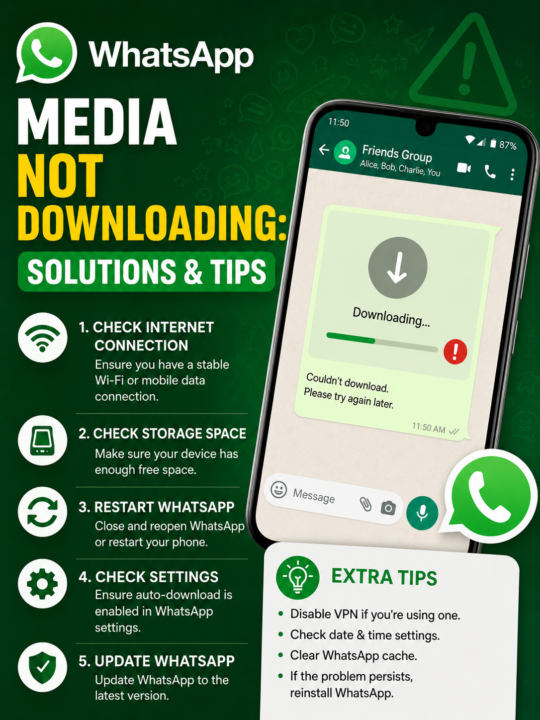
Now that you’ve identified the potential causes, let’s move on to solutions. Here’s a step-by-step guide to help you resolve WhatsApp media not downloading issues:
- Check Your Internet Connection: Ensure you’re connected to a stable Wi-Fi network or have a strong mobile data signal. If your connection is weak, try switching to another network. I once had to leave a party early because I couldn’t download a video of the fun we were having due to a bad signal!
- Ensure Sufficient Storage Space: Check the storage on your device. If it’s running low, delete unnecessary files or apps. You can refer to this guide for tips on increasing Android storage space. A friend of mine used to keep every meme sent to her—until her phone turned into a storage graveyard!
- Review App Permissions: Navigate to your device settings and ensure that WhatsApp has permission to access storage. If not, grant the necessary permissions. It’s a simple fix that can save you a lot of hassle.
- Update WhatsApp: Regularly check for app updates in the Google Play Store or Apple App Store. Update to the latest version to avoid bugs. I’ve noticed that after every update, my app runs smoother, and I can download media without a hitch.
- Clear Cache: Go to your device settings, find WhatsApp, and clear the cache. This can often resolve minor glitches. Think of it as refreshing your browser—sometimes you just need to start over to get things working again.
Following these steps should help you tackle the WhatsApp media not downloading problem effectively. You’ll be back to enjoying those funny videos and heartwarming photos in no time!
The Role of Device Settings in Downloading WhatsApp Media
Your device settings play a crucial role in whether WhatsApp can download media successfully. Here’s how to adjust them:
First, check your data usage settings. If you have restricted background data for WhatsApp, it won’t be able to download media unless you’re connected to Wi-Fi. To change this, go to your device settings, select Data Usage, and ensure that WhatsApp is allowed to use data in the background. I once had this issue where I missed a lot of messages because of restrictive settings! Increase Android Storage Space: Top Tips & Tricks
Second, consider your battery saver settings. If your device is in battery saver mode, it may limit background activities, including downloads. Disable battery saver mode or add WhatsApp to the list of apps that can run in the background. I remember a time I was out hiking, and my phone switched to battery saver mode. I missed out on downloading some beautiful photos my friends shared during the trip!
Understanding WhatsApp Media Download Settings
WhatsApp allows users to customize their media download settings. Here’s how you can adjust these settings to ensure smooth downloads:
- Auto-Download: Navigate to Settings > Storage and Data. Here, you can select when media should automatically download—whether on mobile data, Wi-Fi, or when roaming. Personally, I prefer setting it to download over Wi-Fi only to save my data.
- Media Visibility: Ensure that media visibility is enabled in your chat settings. If this is turned off, downloaded media won’t show in your gallery. I had a friend who had this option turned off and was confused about why she couldn’t find her pictures!
By tweaking these settings, you can significantly improve your experience with WhatsApp, ensuring that media downloads happen smoothly and efficiently.
Dealing with Specific File Types in WhatsApp
Sometimes, the issue isn’t with WhatsApp itself but with the specific media file types. Certain file types may not download due to compatibility issues or corrupt files. Here’s what you can do:
- Check File Format: Ensure the files are in a compatible format. WhatsApp supports images, videos, and documents, but if the file is corrupt or in an unrecognized format, it won’t download. I once received a video file that turned out to be in a format my phone didn’t support, leaving me puzzled.
- Ask Resender to Re-send: If you suspect the file may be corrupt, ask the sender to resend the file. Often, this simple fix can resolve the problem. A friend of mine frequently sent videos that wouldn’t play because they were too large; once she resized them, everything worked perfectly!
By addressing these aspects, you can improve your chances of downloading various media types on WhatsApp without any hitches.

Using WhatsApp Web: A Different Perspective
If you’re facing issues downloading media on the mobile app, consider using WhatsApp Web as an alternative. Sometimes, the web version can bypass glitches found in the mobile app. Here’s how to access WhatsApp Web:
- Open your web browser and go to the WhatsApp Web site.
- Scan the QR code with your phone by going to WhatsApp > Menu > WhatsApp Web.
- Once connected, try to download the media files directly from your browser. Using WhatsApp Web saved me once when I had to download important documents while my phone was acting up!
This method can sometimes give you a better experience, especially when dealing with larger files. Plus, it’s a convenient way to handle downloads while working on a computer.
When to Contact WhatsApp Support
If you’ve tried everything and still face issues with WhatsApp media not downloading, it might be time to reach out to WhatsApp support. Here’s how to do it:
- Visit the WhatsApp Help Center: Go to their official help page and search for your issue. This is often the first step to finding solutions tailored to your specific problem.
- Submit a Support Request: If your issue remains unresolved, you can submit a support request directly through the app. When I reached out regarding a persistent issue, they were surprisingly quick to respond with helpful suggestions!
Make sure to provide detailed information about your issue, including your device type and operating system, to get effective help. It’ll save you time and get you back to enjoying WhatsApp sooner!
FAQs
1. What should I do if WhatsApp media not downloading persists?

If the problem persists, consider reinstalling WhatsApp as a last resort. This can resolve deeper issues with the app. However, make sure to back up your chats first!
2. Can I download media on WhatsApp without an internet connection?
No, WhatsApp requires an active internet connection to download any media files. It’s a common misunderstanding, so be mindful of your connectivity.
3. Why do some media files take longer to download?
File size and internet speed are major factors. Larger files will naturally take longer, especially on slower connections. I often find that videos take longer than images, and it can be frustrating!
4. How can I avoid running out of storage space while using WhatsApp?
Regularly review and delete old chats, media, and unused apps to free up space. A good habit is to set a reminder every month to clean up your device!
5. Is there a limit to how much media I can download on WhatsApp?
While there’s no strict limit, your device storage capacity will determine how much media you can download. So, keep an eye on your storage to avoid running into issues!